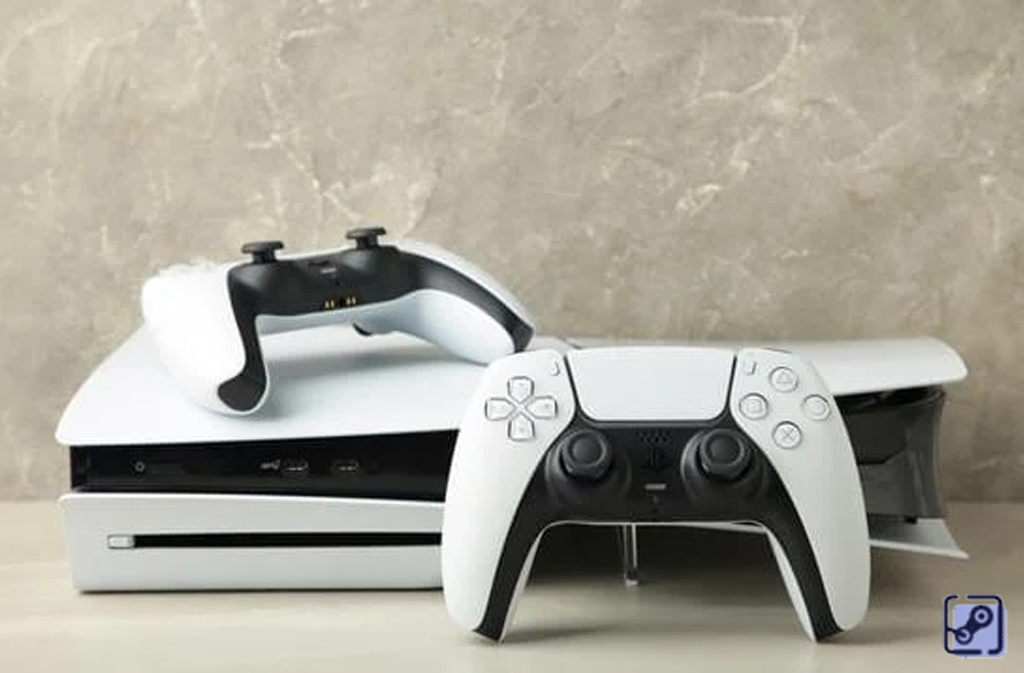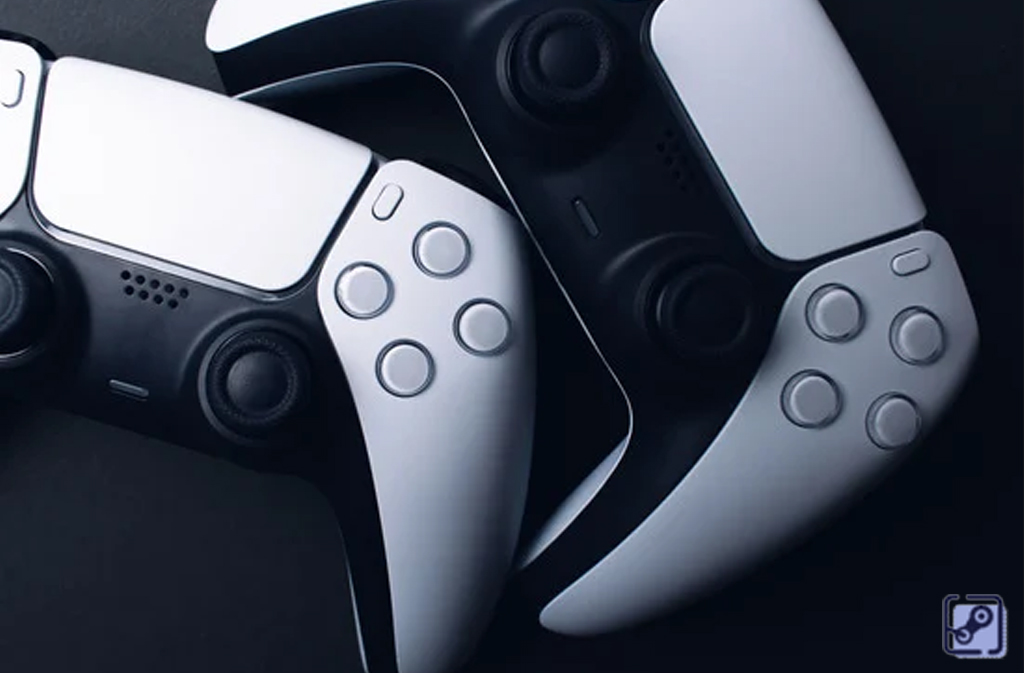
PS5 controller drift is a common issue that many players face. It happens when your controller’s analog stick starts moving on its own, even when you are not touching it. This small problem can make a big difference while playing, especially during fast-paced games. Although it might sound serious, it is often easy to fix with a few simple steps.
There are many reasons why this issue occurs. Sometimes dust or dirt gets stuck inside the stick sensors. Other times, the internal parts wear down after long use. Since gaming can involve quick movements and long hours of play, this problem can show up sooner than expected. Understanding what causes it helps you choose the best fix for your controller.
Common Causes of PS5 Controller Drift
When you know the cause, solving the problem becomes easier. One major reason is the buildup of dust around the analog sticks. Even small bits of dirt can interfere with the sensor inside the controller. This interference leads to unwanted movements on the screen. Cleaning your controller regularly can reduce this risk.
Another possible cause is wear and tear. Over time, the sensors inside the controller may lose their sensitivity. This happens because the tiny components that read your stick’s position become less accurate. As a result, the system thinks you are pushing the stick even when you are not. Understanding these causes helps prevent the same problem in the future.
How to Fix PS5 Controller Drift at Home
If you want to fix PS5 controller drift without professional help, follow these simple steps:
- Clean around the analog sticks:
- Use a dry cloth or a cotton swab dipped lightly in rubbing alcohol.
- Gently move the stick in all directions while cleaning to reach every side.
- Let it dry for a few minutes before using it again.
- This method often fixes the problem, especially if dust or dirt is causing the drift.
- Recalibrate your controller:
- Connect your PS5 controller to the console using a USB cable.
- Go to the Settings menu, then select Accessories or Controllers.
- Choose the Calibration or Reset Controller option.
- Follow the on-screen instructions to re-learn the neutral stick position.
- This process helps the controller detect movements correctly again.
These simple methods usually fix the issue and make your controller work smoothly without any unwanted movements.
When to Replace or Repair the Controller
Sometimes, the drift issue continues even after cleaning and resetting. In such cases, the internal sensors might be too damaged. When this happens, you might need to send the controller for repair or buy a replacement. Although this sounds frustrating, it ensures that your gaming stays smooth and fun.
Before replacing it, check if your controller is still under warranty. Sony often provides repairs for free within the warranty period. However, if the warranty has expired, local repair shops can usually fix it at a reasonable cost. Taking action early prevents the problem from getting worse and saves you money in the long run.
Preventing PS5 Controller Drift in the Future
Preventing PS5 controller drift is easier than you might think. Always keep your controller in a clean and dry place. Dust, moisture, and sudden drops can all shorten its life. When cleaning, use a soft cloth and avoid using too much liquid. Regular maintenance keeps the sticks smooth and responsive.
Another smart step is to avoid pressing the sticks too hard during intense games. Gentle movements help protect the internal parts. In addition, taking short breaks while gaming gives your hands and controller a rest. These small habits not only prevent drift but also make gaming more comfortable and enjoyable.
Why Fixing PS5 Controller Drift Matters
Fixing this issue improves both your gaming performance and overall experience. When your controller responds accurately, every move feels natural. This makes fast actions, like shooting or driving, easier to control. As a result, you enjoy games without sudden unwanted movements ruining your play.
Moreover, fixing problems early increases the lifespan of your controller. Instead of buying a new one, you can keep your current controller working well for years. That saves money and reduces waste, which benefits both you and the environment. So, taking the time to fix or prevent drift is definitely worth the effort.
Final Thoughts
PS5 controller drift can be annoying, but it is not the end of your gaming fun. With simple cleaning, careful handling, and regular maintenance, you can stop it from becoming a serious problem. Even if it appears again, you now know how to handle it quickly and effectively.
By understanding the causes and applying the right fixes, you can enjoy smoother gameplay every time. Keeping your controller in good shape means more control, more fun, and fewer interruptions. In the end, taking care of your equipment always leads to a better gaming experience.
Frequently Asked Questions (FAQs)
1. What is PS5 controller drift?
PS5 controller drift happens when your analog stick moves on its own without being touched. This causes unwanted movements in games, like characters walking or the camera turning by itself.
2. Why does PS5 controller drift happen?
It usually occurs due to dust, dirt, or wear inside the controller’s sensors. Over time, heavy use or poor cleaning can make the sensors misread your inputs, causing drift.
3. How can I fix PS5 controller drift at home?
You can start by cleaning the analog sticks with a dry cloth or cotton swab dipped in rubbing alcohol. If that doesn’t work, recalibrate the controller through the PS5 settings menu to reset the stick’s position.
4. Does Sony repair PS5 controller drift?
Yes. If your controller is still under warranty, Sony can repair or replace it for free. You just need to contact PlayStation Support and provide proof of purchase.
Visit our website: Live Streameast